You collected 200 responses in a form. Do you know who else can see them?
Google Forms data does not stay where you think it does. Here’s how to check in three minutes.
InboxPD | Micro PD 004
It was framed as anonymous. Staff were told their responses were confidential. The form asked honest questions about workplace culture, management, and morale.
The responses went into a Google Sheet.
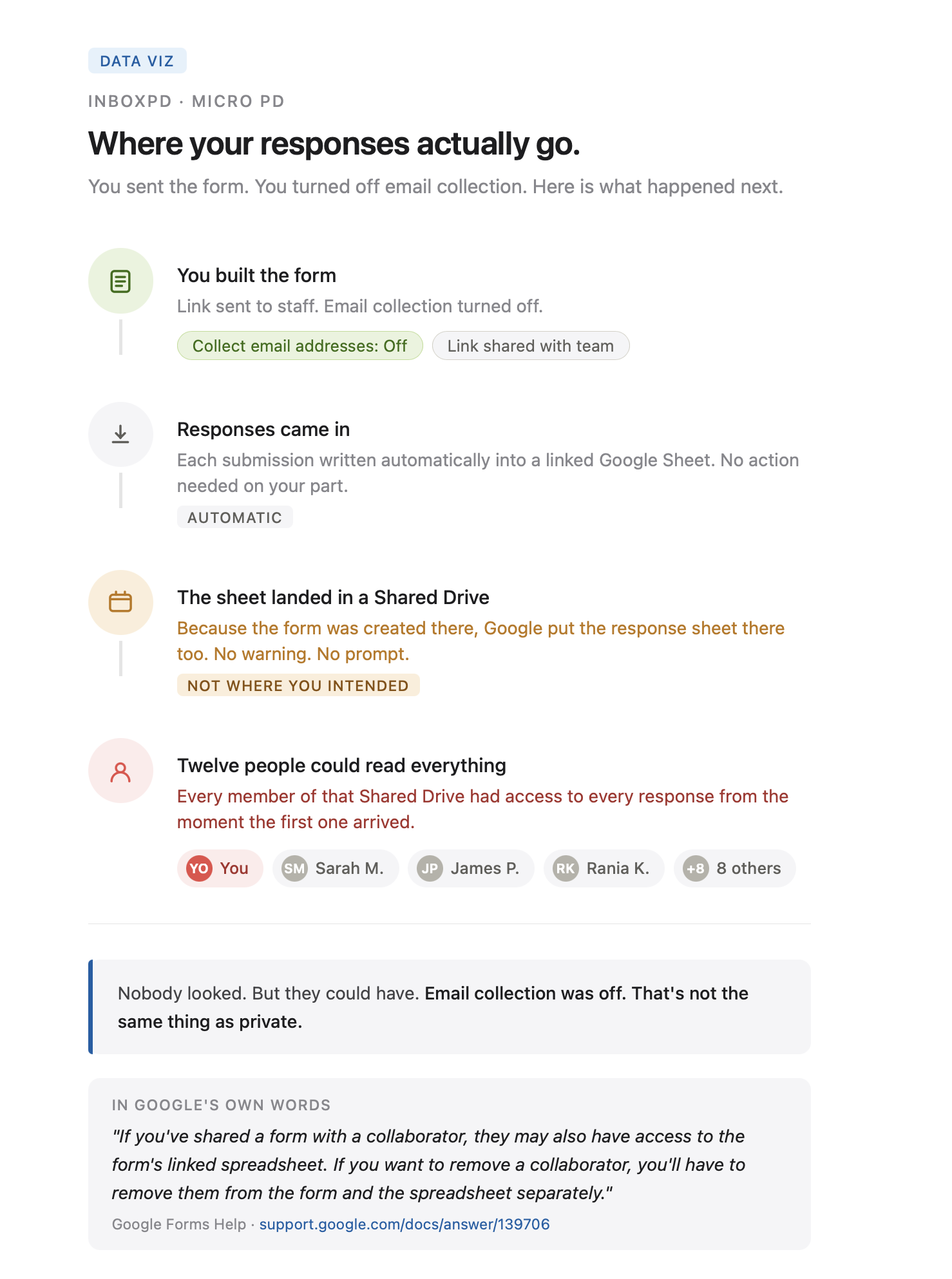
That sheet was sitting in a Shared Drive. Twelve people had access to that drive. The responses were never anonymous. They were never private. Any member of that drive could open the sheet and read every entry.
Nobody looked. But they could have.
The Problem
A Google Form is not a sealed envelope. It’s a front end. The actual data lives somewhere else entirely.
Every response gets written into a linked Google Sheet. That sheet inherits the permissions of wherever it lives. Personal Drive with no sharing? You’re fine. Shared Drive? Every member of that drive can open it. The form settings don’t override the sheet permissions. The two are completely separate systems.
Most people never think about this. They think about the form. They turn off email addresses, assume that makes it anonymous, and share the link. They want the data but don’t actually think about where that data lands.
Here’s the thing about Google Workspace: It’s built to eliminate friction. That is the whole point. But when you eliminate friction, you also eliminate boundaries, and the system then defaults to open. Keeping things private means actively fighting that default, but most people don’t know there’s a fight to have.
If you built that form while working in a Shared Drive folder, the responses are in a cabinet that belongs to the whole team. Google put them there automatically, without warning and without asking if that was what you intended.
The Solution
Two things need checking: where the response sheet lives and who can see it.
The fix has two parts. First, secure the pipeline so future responses go somewhere private. Second, deal with any existing exposed data.
How
Open your Google Form and click the Responses tab. Click the More button (three dots) at the top right and select Unlink form. New responses stop going to the existing sheet. The historical data is still there and still exposed. You’ll deal with that in step 3.
Before relinking, go to your personal My Drive and manually create a blank new Google Sheet. Name it clearly. This is where future responses will go.
Back in the Responses tab, click the Sheets icon and select Select existing spreadsheet. Choose the blank sheet you just created in My Drive. Future responses now go to your private sheet. Then go back and delete the original sheet from the Shared Drive. That’s the exposed data gone.
Do this for any form collecting sensitive information. Staff feedback, parent data, health or dietary details. Anything you would not want posted on a shared noticeboard.
If you’re ready to run the checkup now, go and do it. If not, keep reading.
The anonymous form that wasn’t. Anonymity in a Google Form means the form doesn’t collect the respondent’s email address. That’s it – that’s the feature.
It says nothing about who can access the sheet. If the sheet is in a Shared Drive, any member of that Drive can open it, sort it by timestamp, copy it, read every entry. In a small team, ten responses submitted over the course of a workday are not difficult to attribute. The form was technically anonymous, but in practice, the data collected was not.
The inherited permission problem. When a form is created from inside a Shared Drive, the response sheet inherits the drive’s membership permissions automatically.
There is no warning and there is no prompt. Google does not ask you if this is what you wanted. The sheet is accessible to every drive member from the moment the first response arrives. The collaboration feature worked exactly as it was designed to but the boundary you assumed existed never did.
The compliance gap. If your organisation is subject to any data protection framework (and most schools and workplaces are), collecting personal data without controlling who can see the responses is a documented gap. In the moment that people want data, they think about the data, not designing the collection for privacy.
Under most frameworks, access to personal data must be limited to those with a legitimate need. A Shared Drive full of form responses about staff wellbeing, student circumstance, or parent concerns doesn’t meet that standard. The form looked right - but the plan for storing the data wasn’t. The gap here isn’t your intentions – it’s the default behavior of the tool.
Every form you send is a data collection decision. Where the responses live, and who can see them, is part of that decision. Google won’t make that choice correctly on your behalf – you have to make it deliberately.
Check your active forms today. Start with anything that touches people. The sheet behind the form is where the exposure lives.